

Writing a Novel in NovelCrafter
Part 1: Starting With Hamilton's 40 Chapter “Plot Module”
One of my current NovelCrafter projects is a long-ish fantasy novel. Probably the word-count will end up between 80,000 words up to a little over 100,000 words, although making it a good story is more important than making it a long story.
For this one, I decided to start with a plot outline that already includes what will happen (in general terms) in each chapter. This is easy to do in NovelCrafter, but I think it might still be helpful to document the way I go about it. There are lots of ways to use NovelCrafter, and this will be only one.
No Video??
There's no video of this process. It's relatively quick compared to writing with more traditional methods, but I'm dubious about the value of hours of video of me writing, and dubious about my patience to edit it into a less boring form. More importantly, if you want to follow along on your own project, this written format with some necessary images and links should make it much easier than hitting the pause button and having to replay parts. Don't worry; I'll show the steps I take and the prompts I use that you may find useful. As a bonus, you can play your own background music selections.
Importing An Outline Template to Create Acts and Chapters
NovelCrafter comes with a series of plot outline templates you can use in your project. You can invoke one of these with a single click. There are lots of familiar ones, like Save the Cat, The Hero's Journey, and even Derek Murphy's 24 Chapter Outline. These are easy to modify, or you can manually create your own outline from scratch or from a file.
This feature can be found once you open a novel and look in the Plan section. In a new novel, there will be no Acts, Chapters, or Scenes, but you can easily add from one of the templates of prominent plot outlines. Click Create from Outline and you can click one of the buttons at the bottom to add the complete plot outline structure from eight different templates (at the time I'm writing this).
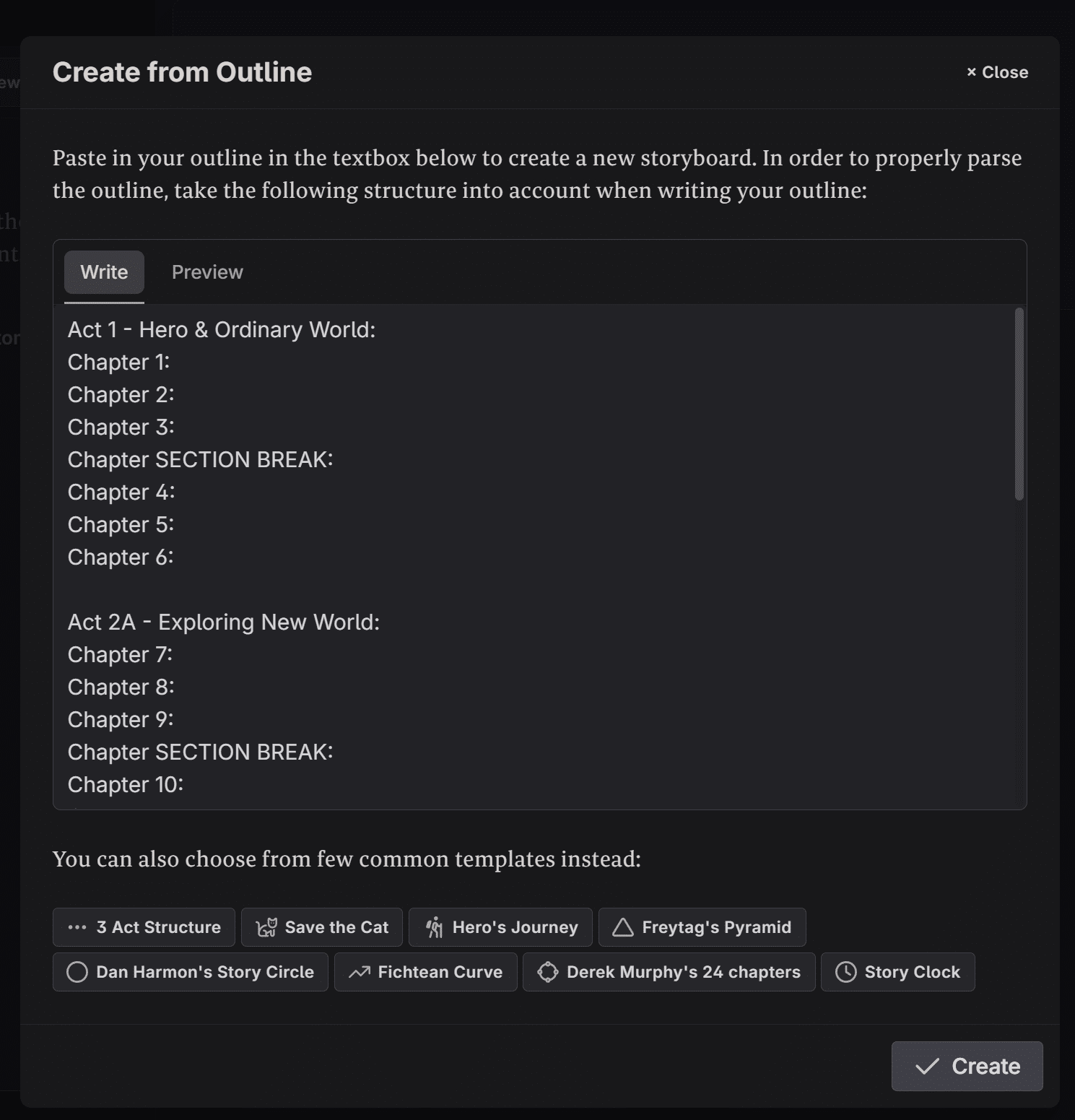
The closest on the list to what I want is Derek Murphy's 24 Chapter Outline, which has detailed information about what to expect to create in each chapter, but it was designed for shorter works, like Young Adult Romance or Urban Fantasy. You can see a preview of part of it in the screenshot above, shown in the template preview, but I'm not using this one. Probably the maximum output from it, if used unmodified, is about 60,000 words.
Why Use the 40-Chapter Outline?
There is a sort of descendant of Murphy's outline developed by Jason Hamilton (AKA The Nerdy Novelist), which he calls his "Plot Module" Outline (link goes to timestamped part of his YouTube video explaining the outline). It is based on 40 main chapters, focusing on one main point-of-view character, with an optional prologue and what he calls an "After-Credit Scene." That last element gives a clue that Hamilton developed his outline based on successful blockbuster film plots. It will produce a book significantly longer than the 24 Chapter Outline will. After testing, I found it's pretty easy to adapt to various scenarios, such as adding a second point-of-view character, or just adding additional subplots.
Note: Jason's 40 chapter outline is described in his YouTube video, which you can freely watch above, and he also has some links where you can sign up to get more information from him about that and lots of other AI writing stuff. I expect I'll adapt his outline quite a bit during this process, but it's only fair to acknowledge the work he put into developing it from other outlines and his observations and research.
Now, on with the process:
The Process
For this article, I'll show how I quickly add this structure to NovelCrafter as a plot outline to set up the starting point of my novel's structure in the Plan section, then how I add it to the Codex as a framework. Then I'll discuss my process for using it to write a character-driven fantasy genre novel. I'll show some worldbuilding, some character development, and then develop a story premise, define some themes and tropes, and finally, start plotting. This is not the order I usually see people demonstrate, but I like the results I get from the LLMs this way.
You should be able to follow along and adapt this to any genre with only minor modifications. Worldbuilding is notoriously thorough for some fantasy genre stories, but I'll use the AI to help avoid becoming mired in that. Other genres might need more or less worldbuilding, but I think the more capable AI models can do really well with lots of well-organized information.
Adding the Outline
Below you'll see a clickable heading "Unformatted 40 Chapter Outline" that you can open to view and copy a version of the 40 chapter outline. I just use that version to set up and name the acts and chapters in NovelCrafter. If you want to hide the outline on this page again, click the heading to toggle it closed.
Copy the outline if you want to follow along and paste that into the "Write" box in a new novel in NovelCrafter. Display the Write box by going to Plan, then clicking the Create from outline button at the bottom.
You can adapt that to your needs. For my novel, I have an idea of how I want to use the prologue, so I'm going to leave that in. You might want to rearrange things or renumber some chapters or acts. If you do so, pay close attention to the changes you make so you can replicate those changes in the next step, when we'll add the more thorough and detailed version of the outline to a Codex entry so NovelCrafter has a framework it can understand. The AI might be able to notice you made changes that don't match, but why confuse it this early?
Adding the Story Structure as a Codex Framework
Credit and my thanks for this part of the process goes to Byte-Sized Booksmith (the link goes to her helpful YouTube channel).
In this step I'll add the fully-detailed 40 Chapter Outline to a NovelCrafter Codex entry. This Codex entry will be what the AI later refers to when I direct it to do things that count on it knowing what is supposed to happen in each chapter. It bears repeating that it is important for this framework Codex entry to match the outline I used in the last step to set up the structure of acts and chapters.
1. In the Codex area of NovelCrafter near the top there is a gear wheel icon next to the +New Entry button. Click the gear wheel. In the menu that pops open, under Configuration, choose Custom Categories.
2. Click +New to add a Custom Category and name it Framework. Choose a color so that all the Codex entries that belong to Framework will be easy to identify at a glance. In the Associated Tags box, enter framework.
Now the novel is set up so that any codex entry made that has the tag framework will be placed under the Framework custom category. It doesn't change the function of those codex entries directly, but this helps to organize the codex because later it will seem quite full of entries.
3. Return to the Codex and click the +New Entry button. I choose Other at this point because that preset already has some good basic settings.
4. Rename the Codex entry so it is called Story Structure. Add a new tag, framework. (Note that tags/labels are separated by commas)
5. Now paste the entire contents of "Full 40 Chapter Story Structure" below (minus that heading) into the description box of the new Story Structure Codex entry.
Now the Codex is set up with a custom Framework category, which I will be adding plenty of other entries to, and most importantly, you have a way to direct the AI to the detailed plan of what will go in the novel.
Note that the word count that shows at the bottom of the new Story Structure Codex entry tells you its contribution to the cost of running AI prompts that call: almost 4,000 words. I use this to help guide decisions later on about which AI models I choose, and what settings they need to have when I need the AI to fully understand the plot outline. It is possible to overwhelm some LLMs with too much input, and some of the larger, more capable models have a substantial token cost (in dollars and cents), too.
If you want to follow along, click a "Full 40 Chapter Story Structure" heading you can click to expand the rather long and detailed outline. To hide the plot structure again on this page, just click the heading again.
You might be interested in this article about the Customizable Genre Developmental Editor prompt for NovelCrafter. I'll be using it and other similar prompts later in this project.
Work on Part 2 is in progress. When it is published, this message will disappear and the button below will link to it.